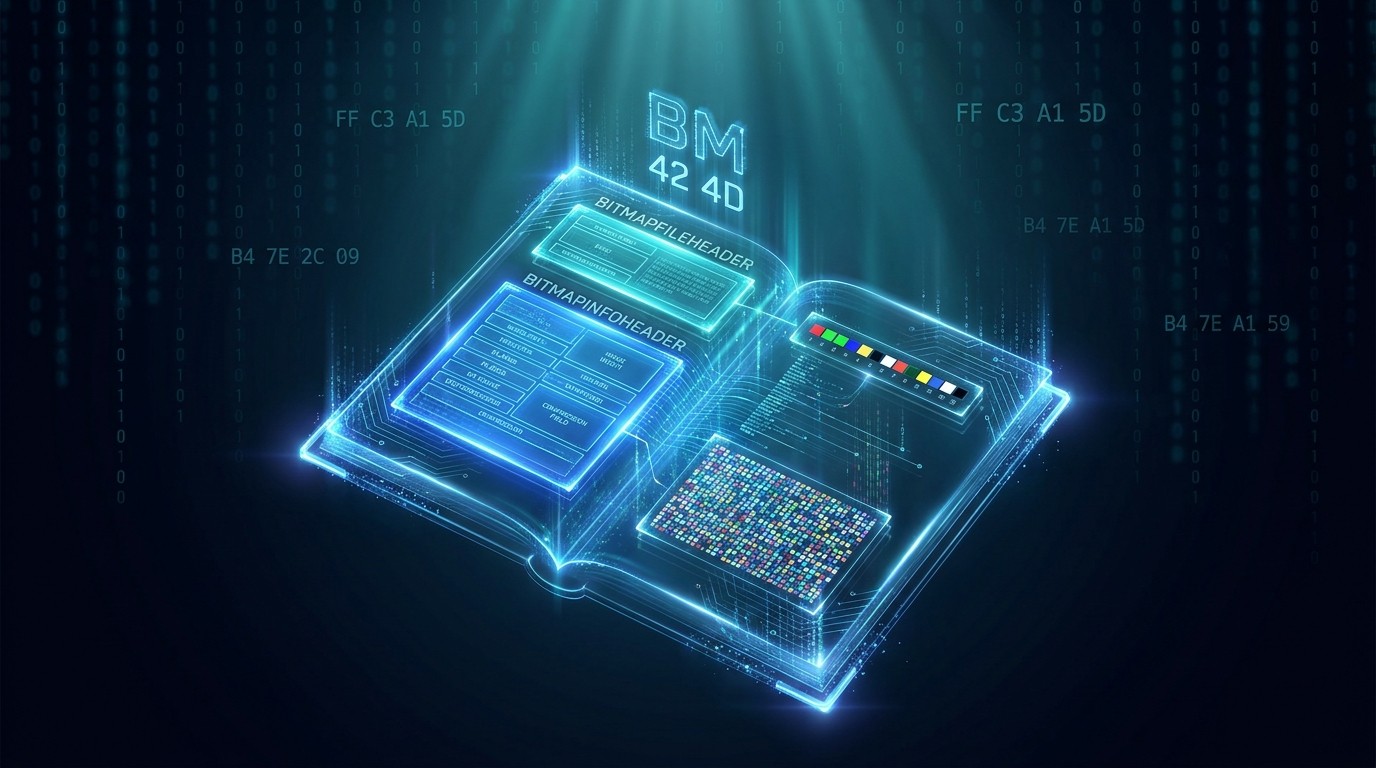
Open a BMP file in a hex editor and the first fourteen bytes look like this:
42 4D 46 00 00 00 00 00 00 00 36 00 00 00
That is the entire BITMAPFILEHEADER. 42 4D is the signature "BM" in ASCII. The next four bytes give the file size: 46 00 00 00 is little-endian for 70. The following four bytes are reserved and always zero. The last four bytes are the offset to the pixel data: 36 00 00 00 is 54, so the pixel array starts at byte 54.
No compression marker. No color profile. No alpha channel. Just a signature, a size, and an offset. BMP is, as the name suggests, a straightforward map of bits.
What BMP actually is
BMP stands for Bitmap, or more formally Device Independent Bitmap (DIB). Microsoft introduced it with Windows 3.0 in 1990 as a way to store raster images without tying them to a specific display device. Before DIB, Windows used Device Dependent Bitmaps (DDB), whose pixel format matched whatever graphics card happened to be installed. A DDB saved on one machine could be unreadable on another.
BMP solved that by storing enough metadata for any decoder to reconstruct the image: width, height, bit depth, color palette, compression type, and the raw pixel array. The operating system reads the header, allocates a buffer, and copies the pixels into memory. For 24-bit uncompressed images, the pixel data is usually just RGB triplets written bottom-up, row by row, padded to a four-byte boundary.
That simplicity made BMP the default Windows image format for over a decade. Paintbrush, the Windows wallpaper engine, early scanners, and countless internal tools all spoke BMP natively.
The file structure
A BMP file has four parts, laid out sequentially:
BITMAPFILEHEADER   (14 bytes)
BITMAPINFOHEADER   (40 bytes for the classic version)
Color Table        (optional, for indexed color modes)
Pixel Data         (the actual image)
BITMAPFILEHEADER (14 bytes)
Bytes 0-1:   Signature    "BM" (0x42 0x4D)
Bytes 2-5:   FileSize     (uint32, little-endian)
Bytes 6-9:   Reserved     (always 0)
Bytes 10-13: Offset       (uint32, offset to pixel data from file start)
The signature is not always "BM". Windows also supports "BA", "CI", "CP", "IC", and "PT" for cursor and icon variants, but in practice every BMP you open starts with "BM".
BITMAPINFOHEADER (40 bytes, BITMAPINFOHEADER type)
Bytes 0-3:   HeaderSize        (40)
Bytes 4-7:   Width             (int32, pixels)
Bytes 8-11:  Height            (int32, pixels; negative means top-down)
Bytes 12-13: Planes            (1)
Bytes 14-15: BitCount          (1, 4, 8, 16, 24, or 32)
Bytes 16-19: Compression       (0 = none, 1 = RLE8, 2 = RLE4, 3 = bitfields)
Bytes 20-23: ImageSize         (0 if uncompressed)
Bytes 24-27: XpixelsPerMeter   (physical resolution)
Bytes 28-31: YpixelsPerMeter   (physical resolution)
Bytes 32-35: ColorsUsed        (0 means 2^BitCount)
Bytes 36-39: ColorsImportant   (0 means all)
Later Windows versions added larger headers (52, 56, 108, and 124 bytes) to support alpha masks, color spaces, and ICC profiles. The 40-byte version is still the one you are most likely to encounter.
Height is a direction
If the height field is positive, the image is stored bottom-up. Row 0 in the file is the bottom row of the image. If the height field is negative, the image is stored top-down. This is one of BMP's quiet oddities. Most other formats store top-down by default.
The color table
For bit depths of 1, 4, or 8, BMP uses an indexed palette. Each palette entry is four bytes: blue, green, red, and a reserved alpha byte that is almost always ignored. A 256-color BMP has a 1,024-byte color table immediately after the header. The pixel data that follows is not colors. It is indexes into that table.
Pixel data padding
Each scanline must be a multiple of four bytes. A 24-bit image that is 5 pixels wide needs 15 bytes per row, which rounds up to 16. Those extra padding bytes are wasted space, another small reason BMP is inefficient.
Here is a complete example for a 2 x 2 24-bit uncompressed BMP:
Offset 0x00: 42 4D 46 00 00 00 00 00 00 00 36 00 00 00  -- BITMAPFILEHEADER
Offset 0x0E: 28 00 00 00 02 00 00 00 02 00 00 00 01 00 18 00  -- BITMAPINFOHEADER
Offset 0x22: 00 00 00 00 10 00 00 00 00 00 00 00 00 00 00 00
Offset 0x32: 00 00 00 00 00 00 00 00
Offset 0x36: FF 00 00 00 FF 00 00 00 FF  -- bottom row: red, green, blue (with padding)
Offset 0x3F: 00 FF FF 00 FF FF 00 00 00  -- top row: cyan, magenta, yellow (with padding)
The format landscape in 1990
BMP did not appear in a vacuum. By 1990, several image formats were already competing for attention:
| Format | Compression | Color depth | Transparency | Patent risk | Typical use |
|---|---|---|---|---|---|
| GIF | LZW | 256 colors max | 1-bit | Yes (LZW) | Web graphics |
| JPEG | DCT + Huffman | 24-bit | None | Mostly no | Photographs |
| TIFF | Multiple optional | Up to 48-bit | Yes | Optional | Print, scanning |
| PCX | RLE | Up to 24-bit | None | No | DOS games, clip art |
| PICT | RLE | Up to 32-bit | Yes | No | Classic Mac OS |
| BMP | None or RLE | Up to 32-bit | None | No | Windows wallpaper, icons |
GIF was already the default on the web, but its LZW patent made commercial use risky. JPEG was built for photographs and discarded data with lossy compression. TIFF was powerful but overengineered. Writing a universal TIFF reader was a project in itself. PCX was dying with DOS.
BMP's pitch was simplicity. It was not smaller, faster, or more capable than the others. It was simply the format Windows understood without any extra libraries.
Why BMP worked
BMP had real advantages in its context:
Zero decoding complexity. A 24-bit uncompressed BMP can be rendered by reading a fixed-size header and copying pixels straight into a framebuffer. No Huffman tables, no DEFLATE state machine, no progressive passes. This made it ideal for embedded systems with limited CPU power.
No patent encumbrance. Unlike GIF's LZW, BMP compression was either absent or RLE, both unencumbered. That mattered for open-source tools and commercial software that wanted to avoid Unisys's GIF licensing.
Direct Windows integration. The Win32 API had LoadBitmap, BitBlt, and StretchBlt built around DIB sections. A developer could load a BMP into memory and blit it to the screen in a few lines of C.
Predictable memory layout. Because uncompressed BMP pixels map directly to screen memory, game engines and graphics tools used BMP as a texture interchange format in the 1990s. You could memory-map the file and treat the pixel offset as a raw buffer.
Where BMP fell short
BMP's strengths were also its weaknesses. The format did not keep up with the rest of the industry.
No effective compression. Uncompressed BMPs are enormous. A 1920 x 1080 24-bit image is 5.93 MB. The same image as JPEG quality 90 is roughly 300–500 KB. As internet speeds and storage costs became constraints, BMP became embarrassing.
RLE compression is weak. BMP supports RLE8 and RLE4 run-length encoding, but RLE only helps images with large uniform areas. Photographs and gradients compress poorly. RLE-encoded BMPs are rare in practice.
No real transparency. Standard BMP has no alpha channel. The 32-bit BMP variant includes an alpha byte, but many tools ignore it or treat it as reserved. For web graphics and game sprites, this made BMP useless compared to PNG.
No animation, no metadata, no color management. BMP stores pixels and little else. No EXIF, no ICC profile support in the original header, no animation frames. As workflows became more sophisticated, BMP stayed primitive.
Bottom-up storage. The default bottom-up row order confuses decoders and wastes cycles on conversion. It is a small detail that adds friction for no benefit.
The formats that replaced BMP
BMP's limitations directly shaped what came next.
PNG (1996) solved the transparency and compression problem. It offered lossless compression, 8-bit alpha, and a simpler specification than TIFF. PNG replaced BMP almost everywhere on the web and in cross-platform applications.
JPEG (1992) solved the photograph problem. Its DCT-based lossy compression made photographs 10–20× smaller than uncompressed BMP. For any continuous-tone image, JPEG became the default.
WebP (2010) added lossy and lossless modes, animation, and alpha in one container. A lossless WebP is typically 20–30% smaller than PNG, which itself beats BMP by a huge margin.
HEIC/HEIF (2013) brought HEVC-based compression to still images. It achieves smaller file sizes than JPEG with better quality, supports alpha and depth maps, and is now the default on Apple devices. When an iPhone saves a photo, it is usually HEIC.
Each of these formats exists because BMP stopped being good enough for a specific use case.
Where BMP still shows up
BMP is not dead. It has simply been pushed into niches where its simplicity is more valuable than its inefficiency.
Windows internals. The Windows boot screen, legacy dialogs, and some system resources still use BMP. The Win32 GDI API expects DIB data, and rewriting those code paths is not worth Microsoft's time.
Embedded systems and microcontrollers. A small LCD on an Arduino or STM32 does not have the RAM or CPU to decode PNG. A 16-bit uncompressed BMP can be copied directly into the frame buffer with almost no code.
Medical and scientific imaging. Some legacy DICOM viewers and lab equipment export BMP because every system can open it. The format's simplicity reduces interoperability risk, which matters in regulated environments.
Reverse engineering and education. BMP is still one of the best formats for teaching image file structure. The headers are small, the pixel layout is obvious, and you can build a working decoder in an afternoon.
Game development legacy. Older game engines and texture tools used BMP as an intermediate format. Some modding communities still work with BMP assets because the tools were built around it.
Detecting BMP by reading the signature
Do not trust the .bmp extension. Read the first two bytes.
TypeScript
async function isBmp(file: File): Promise<boolean> {
  const buffer = await file.slice(0, 2).arrayBuffer()
  const bytes = new Uint8Array(buffer)
  return bytes.length === 2 && bytes[0] === 0x42 && bytes[1] === 0x4d
}
Python
def is_bmp(path: str) -> bool:
    with open(path, "rb") as f:
        return f.read(2) == b"BM"
Go
func isBmp(path string) bool {
	f, err := os.Open(path)
	if err != nil {
		return false
	}
	defer f.Close()

	buf := make([]byte, 2)
	if _, err := f.Read(buf); err != nil {
		return false
	}
	return bytes.Equal(buf, []byte("BM"))
}
PHP
function isBmp(string $path): bool {
    $header = file_get_contents($path, false, null, 0, 2);
    return $header === "BM";
}
ImageMagick CLI
magick identify -verbose image.bmp | grep "Format:"
# Format: BMP (Microsoft Windows bitmap image)
Or simply:
file image.bmp
# image.bmp: PC bitmap, Windows 3.x format, 1920 x 1080 x 24
The future of BMP
BMP is a finished format. The core specification has not changed in any meaningful way since the Windows 95 era. That is both a limitation and a guarantee: a BMP written in 1995 still opens correctly today.
The format will not grow new features. It will not get better compression, proper alpha handling, or animation support. Nobody is investing in BMP because nobody needs a better BMP. PNG, WebP, AVIF, and HEIC have already won every context where efficiency matters.
But BMP will survive in the places where it already lives: Windows internals, embedded displays, legacy medical equipment, and classrooms. It is unglamorous and inefficient, but impossible to remove because too many systems know how to read it.
If you have legacy BMP files that need to work on modern devices, convert them. Photographs become much smaller as JPEG or HEIC. Graphics with transparency work better as PNG or WebP. When bridging the Apple ecosystem, converting HEIC to a universally readable format is the first step.
Our HEIC to JPG converter runs in the browser, so the file stays on your device. For lossless output with transparency, use HEIC to PNG. For web-optimized sizes, HEIC to WebP produces smaller files with broad browser support.
BMP's staying power came from simplicity and inertia: it is simple enough that every system implements it, and entrenched enough that no one removes it.