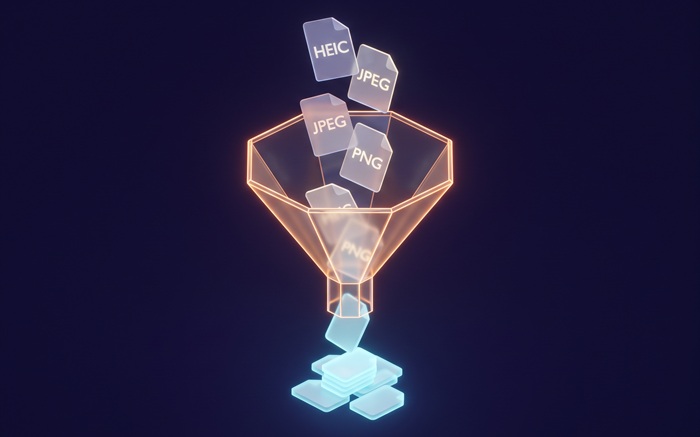
Batch JPG to ICO
Convert JPG to Windows ICO favicon icons
Drop JPG files or folder here
Click to browse — supports .jpg, .jpeg
Tips
JPG — Universal format. Works on every device and platform.
ICO — Windows icon format. Multi-size favicons in one file.
Privacy — No server sees your images. The conversion runs entirely in your browser.
Batch — Drop multiple JPGs or a folder. Each source becomes its own ICO file.
How to Convert JPG to ICO
Drop your JPG files
Drag photos from your computer, or click to browse. We accept JPG and JPEG files.
Convert instantly
The tool resamples each JPG locally in your browser using the Canvas API. Your files are not uploaded.
Download ICO
Download ICO — multi-size icon files ready for Windows and favicon use.
About JPG to ICO
A favicon must render sharp at 16×16 pixels in a browser tab and crisp at 256×256 on a high-DPI desktop. JPG was never designed for this — it is a photo format with no native multi-resolution support and no alpha channel for transparent backgrounds. ICO is the container format Windows and browsers expect for icons, holding multiple bitmap sizes in a single file so the OS picks the right one automatically.
This tool converts JPG files to ICO directly in your browser. ICO is the standard Windows icon format, used for application icons, folder icons, and website favicons. The conversion runs locally using the Canvas API, so your photos stay on your device.
Automatically generates commonly used icon sizes (16×16 to 256×256) based on your source image in a single ICO file. Sizes larger than the source image are skipped to avoid upscaling artifacts. The result works for website favicons and Windows application icons. We do not add watermarks or impose usage limits.
Frequently Asked Questions
Why convert JPG to ICO?
ICO is the standard Windows icon format. It is used for application icons, folder icons, and website favicons. Converting your JPG images to ICO creates multi-size icon files that work across all Windows versions and browsers.
What is ICO format?
ICO is the standard Windows icon format. It is a container that holds multiple image sizes in one file. Windows uses it for application and folder icons, while websites use it as the favicon displayed in browser tabs.
What icon sizes are generated?
The tool generates common standard sizes (16×16, 24×24, 32×32, 48×48, 64×64, 128×128, and 256×256) based on your source image. Sizes larger than the source image are automatically skipped to avoid upscaling artifacts. You can also manually select which sizes to include before converting.
Is there a file size limit?
There is no hard limit. Since processing runs locally in your browser, the practical limit depends on your device's memory. Most photos convert instantly.
Do I need to sign up or pay?
No. No account is required and no watermark is added. The tool is free to use, with no limits.
Is my photo data safe?
Yes. Everything is processed in your browser with the Canvas API. We do not upload, store, or log your images.