File Convert Factory
Free HEIC Image Converter
Convert HEIC images in your browser — no uploads, no servers, no waiting. Your files stay on your device.
Drop HEIC files here
or click to browse
Popular Tools
Batch HEIC to JPG
Convert HEIC format to JPG format
Text Repeater
Free online text repeater. Repeat text, emojis & symbols with custom separators up to 10,000×. No signup.
Batch PDF to JPG
Convert PDF pages to JPG images in your browser
Batch PDF to Markdown
Convert PDFs to editable Markdown in your browser
Batch Markdown to PDF
Convert Markdown files to PDF documents in your browser
All Tools
Features
100% Private
Your files never leave your device. All conversions run locally in your browser — no uploads, no servers, no logs.
Zero Friction
No account, no watermark, no limits. Drop a file, convert it, download it. That's the entire workflow.
Blazing Fast
WebAssembly-powered processing at near-native speed. No server round-trips, no queues, no waiting.
What Is HEIC?
HEIC is the default photo format on every iPhone and iPad since iOS 11. It is a container — not a compression algorithm — built on the same ISO standard as MP4, with images encoded using HEVC (H.265). The result: file sizes roughly half that of equivalent JPEGs at the same visual quality.
The trade-off is compatibility. Windows requires a Microsoft Store extension to open HEIC files. Chrome, Firefox, and most Android devices below version 9 cannot display them at all. Social platforms, email clients, and print services routinely reject the format.
Converting HEIC to JPG, PNG, or WebP solves this instantly. JPG opens on every device. PNG preserves transparency for design work. WebP delivers smaller files than JPG with equal quality. Our converter handles all three directly in your browser.
Which Format Should You Choose?
| Format | Compression | Transparency | Best For |
|---|---|---|---|
| JPG | Lossy | No | Sharing, printing, social media — opens everywhere |
| PNG | Lossless | Yes | Design work, editing, archival — no quality loss |
| WebP | Lossy | Yes | Websites, apps, storage — 25-35% smaller than JPG |
JPG is the safe default. PNG is what you want when you need pixel-perfect quality or transparency. WebP is the modern choice for any digital use case where file size matters. All three are generated from the same HEIC source with no server round-trip.
How It Works
Drop your files
Drag photos from your iPhone, Photos app, or file manager. You can select multiple files or an entire folder. We read the file signature of each image to confirm it is actually HEIC before doing anything else.
Choose your format
Pick JPG for universal compatibility, PNG for lossless quality with transparency, or WebP for the smallest file size. You can process multiple files in one batch.
Convert locally
A WebAssembly build of libheif runs entirely inside your browser. No upload, no server queue, no data center. Your files never leave your device.
Download
Save individual images or grab everything as a ZIP. The output keeps the original resolution and color accuracy. Default quality is 90% — the difference from the source is invisible.
Why Choose
Original Quality Preserved
Every conversion keeps the original resolution and color accuracy. No hidden compression, no quality loss.
No Software to Install
Your browser is all you need. No downloads, no installers, no plugins -- open the page and convert.
Truly Free, Forever
No paywalls, no subscription tiers, no "upgrade for HD" traps. Every feature is free and always will be.
Clean & Focused
No ads, no popups, no feature bloat. One page, one purpose: convert your files and get out of your way.
Frequently Asked Questions
Is this really free?
Yes. No account, no credit card, no usage limit. The converter runs in your browser using open-source software. We do not gate features behind a paywall.
Do my files get uploaded to a server?
No. The entire conversion happens inside your browser via WebAssembly. Your photos never leave your device. We cannot see them, store them, or share them — by design.
What is the output quality?
JPG defaults to 90% quality at the original resolution. PNG is pixel-perfect lossless. WebP matches JPG quality at a smaller file size. You can adjust the JPG quality slider if you need smaller files.
Can I convert multiple files at once?
Yes. Drop a folder or select multiple files. The tool queues them and converts each one in sequence. You can download individual results or everything as a single ZIP archive.
More blog posts to read
What Is HEIC? A Technical Deep Dive into File Signatures, Detection, and Conversion
Deep Dives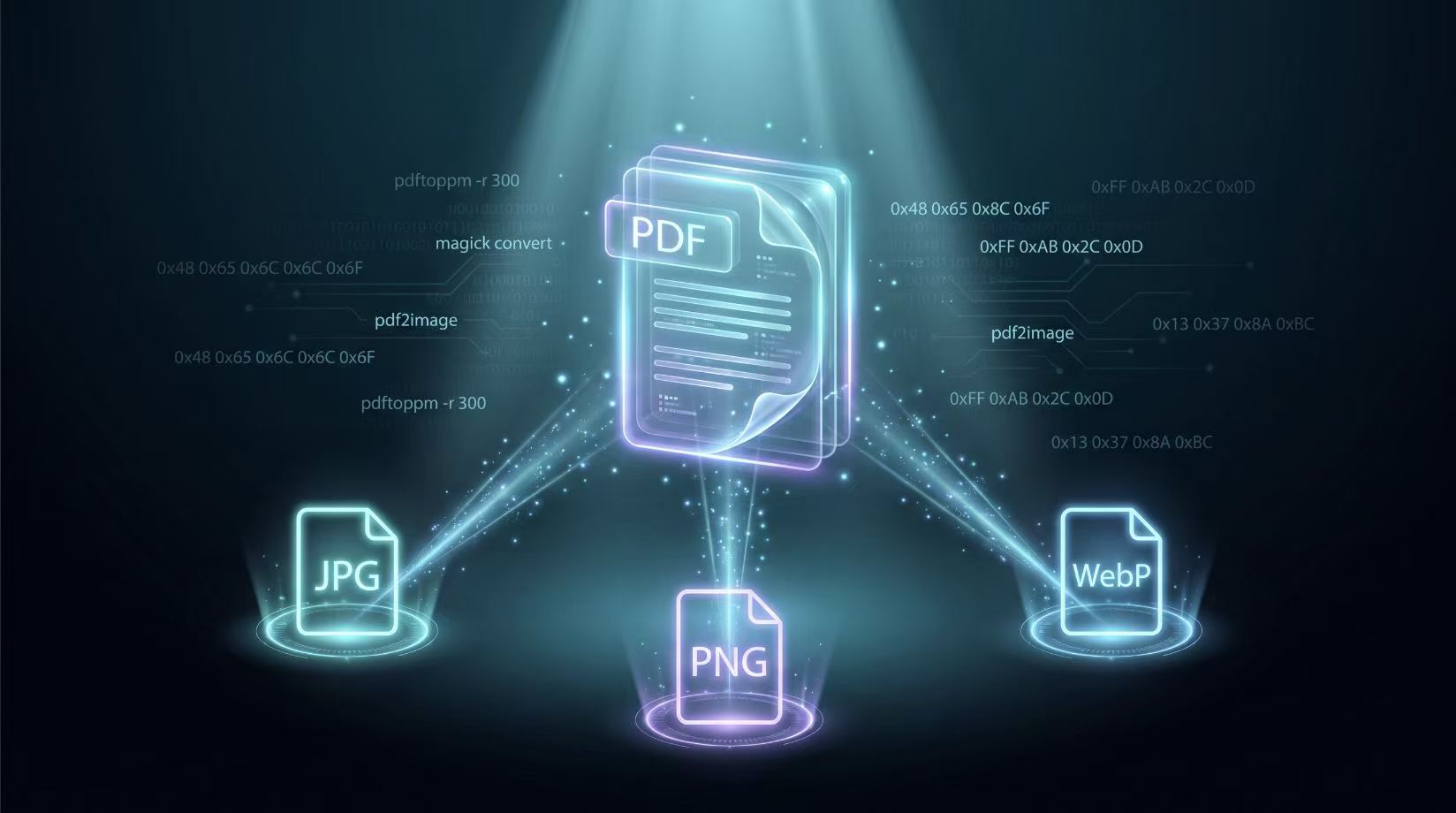
How to convert PDF pages to images: a practical guide
Deep Dives