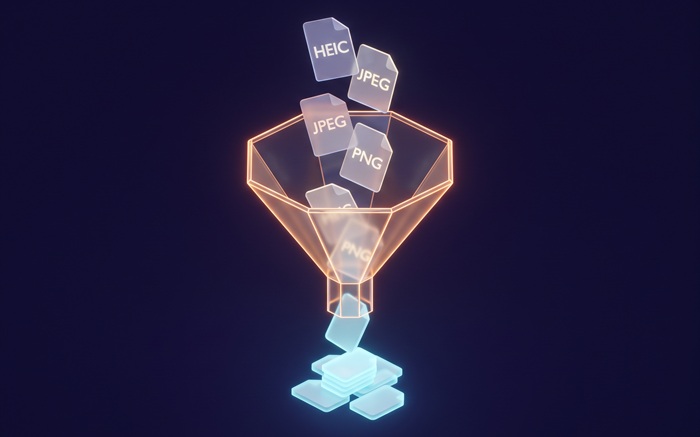
You have 200 HEIC photos from a trip. They will not open on your Windows laptop, your web app expects JPEGs, and your photo sharing site refuses HEIC entirely. You could convert them one by one: four clicks per photo, 800 clicks total, half an afternoon gone. Or you could drop the folder into a browser tab and walk away while it processes.
This is the workflow batch converters are built for, and the browser-based ones work differently from the desktop software you might have used.
What Batch Conversion Actually Means
Batch conversion is not "convert one file, repeat." A real batch pipeline does three things in parallel where possible:
- Read: parse each file's header to confirm the format. A
.heicextension proves nothing. The pipeline reads the first 12 bytes, checks theftypbox forheic/heif/mif1, and rejects mismatches before touching the pixel data. - Decode: decompress the source into raw pixels. For HEIC files, this means running a WebAssembly build of libheif. For JPEG and PNG, the browser's native decoders handle it. This step is CPU-bound and the bottleneck.
- Encode: compress the raw pixels into the target format. JPG encoding at quality 90, PNG with DEFLATE, WebP with the browser's built-in encoder.
Desktop software does the same three steps. The difference is where the CPU cycles burn: on your machine either way, but in a browser tab there is no installer, no admin permissions, and no temporary files littering your desktop.
Supported Format Pairs
Not every format converts well to every other. The matrix that matters:
| From | To JPG | To PNG | To WebP | To ICO |
|---|---|---|---|---|
| HEIC | ✓ | ✓ | ✓ | — |
| JPG | — | ✓ | ✓ | ✓ |
| PNG | ✓ | ✓ | ✓ | ✓ |
| WebP | ✓ | ✓ | — | ✓ |
| BMP | ✓ | ✓ | ✓ | ✓ |
The blank entries are not missing features. HEIC-to-ICO is a nonsense conversion: a multi-megabyte photo shrunk to a 256×256 icon file loses everything that made it a photo. The tool skips pointless paths.
PDF pages follow a separate pipeline. Each page renders through PDF.js to a canvas, then encodes to the target format. Our PDF to JPG, PDF to PNG, and PDF to WebP converters batch-process every page automatically.
The Workflow Step by Step
1. Drop Everything at Once
Open the converter page. Drag a folder from your file manager onto the drop zone. You can also click to open the file picker and select multiple files; Ctrl+A works here.
The drop zone reads the FileList object directly from the browser's drag event. No upload happens. The files stay in memory as File objects, which are just references to blobs on disk with a name, a size, and a MIME type guessed from the extension.
2. Let Validation Run
Each file gets checked before decoding. For HEIC files, the validator reads the ftyp box as described above. For everything else, the browser's createImageBitmap() call either succeeds (valid image) or throws (corrupted or mislabeled file).
Invalid files get flagged with a red marker and a reason: "Not a valid HEIC file," "Unsupported format," "File exceeds 200 MB." They do not block the rest of the batch. Valid files queue for processing.
3. Pick the Output Format
Each converter page targets a specific output format. If you need HEIC to JPG, use the HEIC to JPG page. Need HEIC to PNG instead? HEIC to PNG. The output format is fixed per page, which keeps the UI simple: no dropdown, no confusion.
Quality settings are format-specific. JPG gives you a quality slider (10–100, default 90). PNG is always lossless, so no slider needed. WebP uses a quality slider that behaves differently from JPEG's: WebP at 80 is roughly equivalent to JPEG at 92 for photographic content.
4. Wait (Briefly)
Processing time depends on three things: file count, file size, and your CPU. A modern laptop with 8 cores handles roughly 2–4 HEIC-to-JPG conversions per second. A folder of 200 iPhone photos finishes in under two minutes.
Each file runs through requestAnimationFrame-split chunks so the UI stays responsive. The progress bar shows file-level progress, not byte-level: each file is one tick regardless of size.
5. Download
You get two options:
Individual downloads: each converted file downloads separately. The browser's download manager handles this natively and it works everywhere.
ZIP archive: all converted files packed into a single .zip. Built in-memory with a streaming ZIP implementation; files compress on the fly, no temporary storage needed.
The original filenames carry over with the extension changed. IMG_4021.HEIC becomes IMG_4021.jpg.
Quality and Size Trade-offs
Converting formats means making choices about file size:
| Conversion | Typical size change | Quality notes |
|---|---|---|
| HEIC → JPG (q90) | ~2× larger | Visually identical at normal zoom |
| HEIC → PNG | ~5–8× larger | Lossless, but overkill for photos |
| HEIC → WebP (q80) | ~1.2× larger | Smaller than JPEG at similar quality |
| PNG → JPG (q90) | ~3–5× smaller | Transparency becomes white background |
| BMP → JPG (q90) | ~10–20× smaller | BMP stores raw pixels; JPG compresses them |
| JPG → PNG | ~5–10× larger | No quality gain; just stops further loss |
HEIC to PNG is the trap people walk into. HEIC is already lossy. Converting lossy to lossless does not recover quality; it freezes the current state at 5× the file size. For photos headed to the web, HEIC to JPG or WebP is the honest path. For photos headed into an editor, PNG makes sense because it prevents generation loss on subsequent saves. The same logic applies across the board. See our lossy vs lossless guide for the full explanation.
Browser vs Desktop vs Server
| Browser-based | Desktop software | Server/cloud | |
|---|---|---|---|
| Install | None | Download + install | None |
| Privacy | Files stay local | Files stay local | Files uploaded to server |
| Speed | WebAssembly (near-native) | Native | Network upload + queue + download |
| Batch size | Memory-limited (~500+ files) | Disk-limited | Often capped on free tiers |
| Updates | Always latest | Manual updates | Always latest |
Browser-based converters land in the sweet spot for most people: no install, no upload, and fast enough that the difference from native is imperceptible on anything made in the last five years.
The WebAssembly detail matters. The HEIC decoder is a compiled C library (libheif) running in a WASM sandbox. It has no filesystem access, no network access, and no way to send your data anywhere. The browser enforces these boundaries at the engine level, not at the application level. More on this architecture in our WebAssembly explainer and browser privacy deep-dive.
When Batch Conversion Breaks
A few things stop a batch run cold:
- Mixed formats in the wrong converter. Dropping JPEGs into the HEIC-to-JPG page. The validator catches these and skips them. Rejected files get a clear label so you can redirect them to the right converter.
- Memory exhaustion on very large batches. Processing 2,000 24 MP raw files will eventually hit browser memory limits. The fix is splitting the batch into chunks of a few hundred. For typical phone photos (12 MP, ~2 MB HEIC), 500+ files per run is fine.
- Safari's download behavior. Safari limits concurrent downloads more aggressively than Chrome or Firefox. Individual downloads work fine. ZIP downloads work around this entirely: one file, no concurrency issues.
Related Tools
Every image converter on this site supports batch processing:
- HEIC conversions: HEIC to JPG · HEIC to PNG · HEIC to WebP
- JPG conversions: JPG to PNG · JPG to WebP · JPG to ICO
- PNG conversions: PNG to JPG · PNG to WebP · PNG to ICO
- WebP conversions: WebP to JPG · WebP to PNG · WebP to ICO
- BMP conversions: BMP to JPG · BMP to PNG · BMP to WebP · BMP to ICO
- PDF page extraction: PDF to JPG · PDF to PNG · PDF to WebP
No account required. No per-file charges. Drop the folder and download the results.